 BlackRAW
Blackmagic RAW
Open .braw footage, adjust its available RAW decode controls, and grade it beside your other clips. Supported BRAW clips can also be trimmed as original RAW files.
Your pocket color and video studio.
Refine your color, create a look and trim your clips.
Export them separately or as a sequence, on iPhone and iPad.
Blackmagic RAW · Apple ProRes RAWAlso works with ProRes, H.264 and HEVC supported by your device.
WHEN THE SOURCE IS RAW
The same touch-first color workspace also develops two professional RAW formats.
Open .braw footage, adjust its available RAW decode controls, and grade it beside your other clips. Supported BRAW clips can also be trimmed as original RAW files.
Decode and develop supported ProRes RAW footage, then shape the color with the same clip and timeline tools. RAW-original trim export remains BRAW-only.
A COLOR WORKFLOW THAT TRAVELS
Balance, shape and carry the look across your footage.
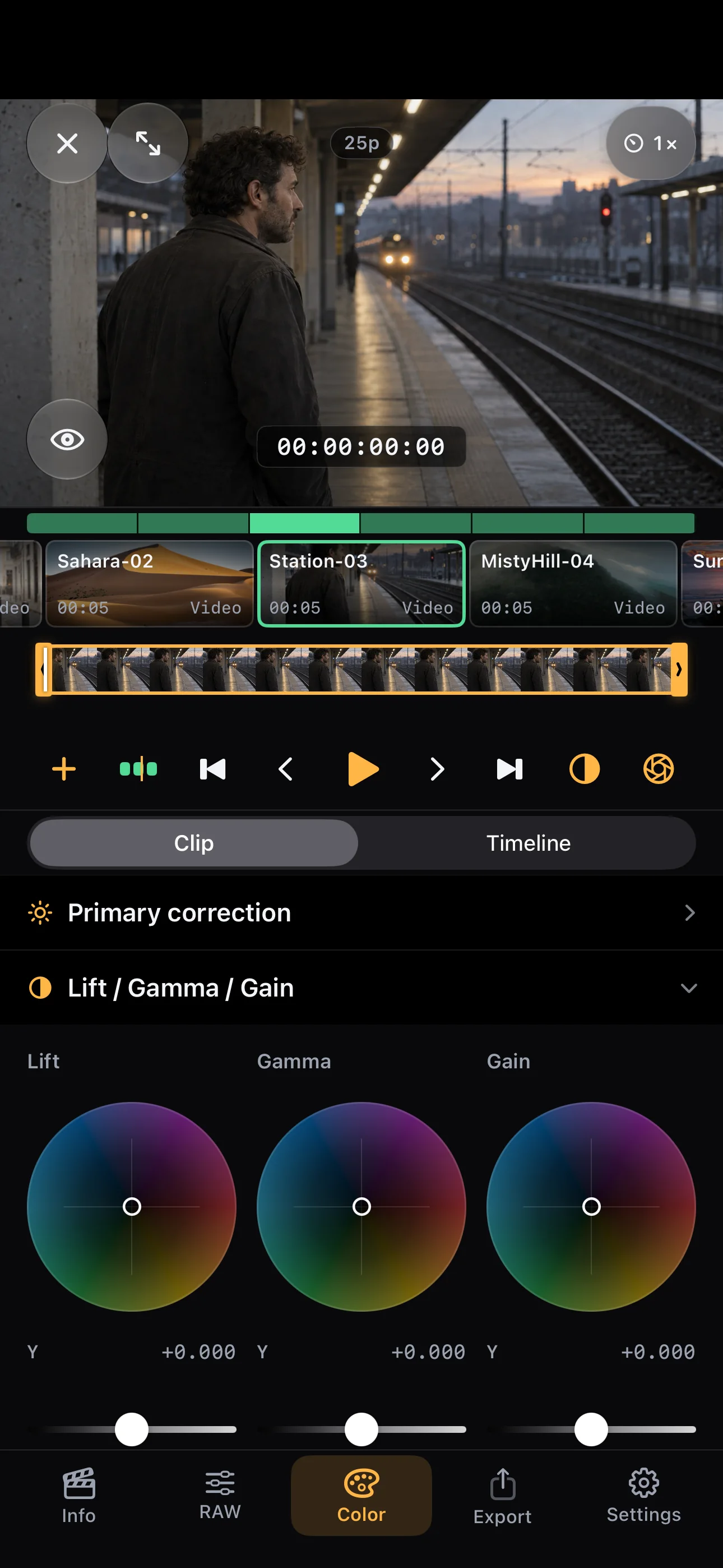
Start with the color wheels. Lift, Gamma and Gain are visible beside your image, ready for a precise adjustment.
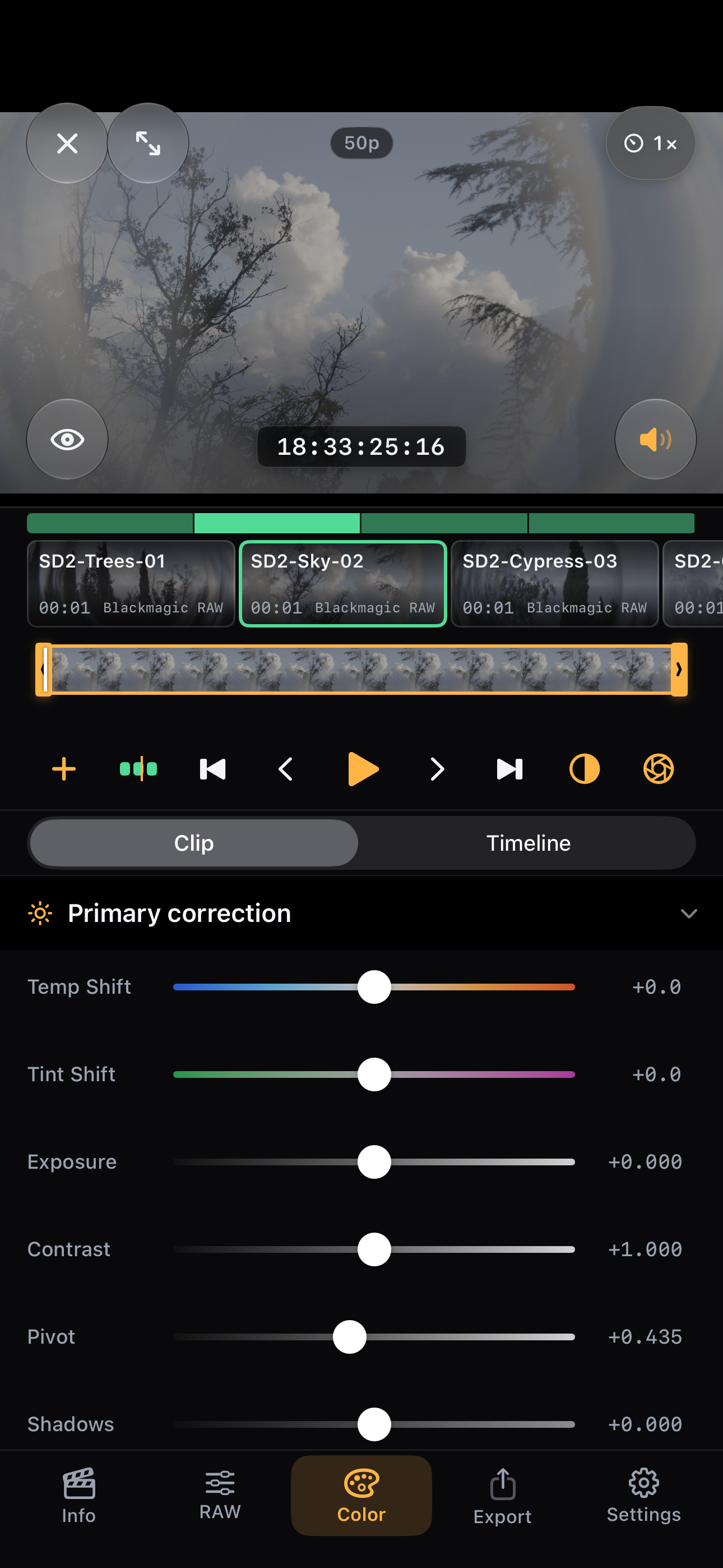
Use exposure, temperature, tint and contrast when the shot needs a solid starting point.
Bring clips together and choose whether to grade one shot or the timeline.
Actual English interface captured on iPhone 15 Pro Max · fictional conventional-video scenes and genuine BRAW sample footage
01 / MAKE IT YOURS
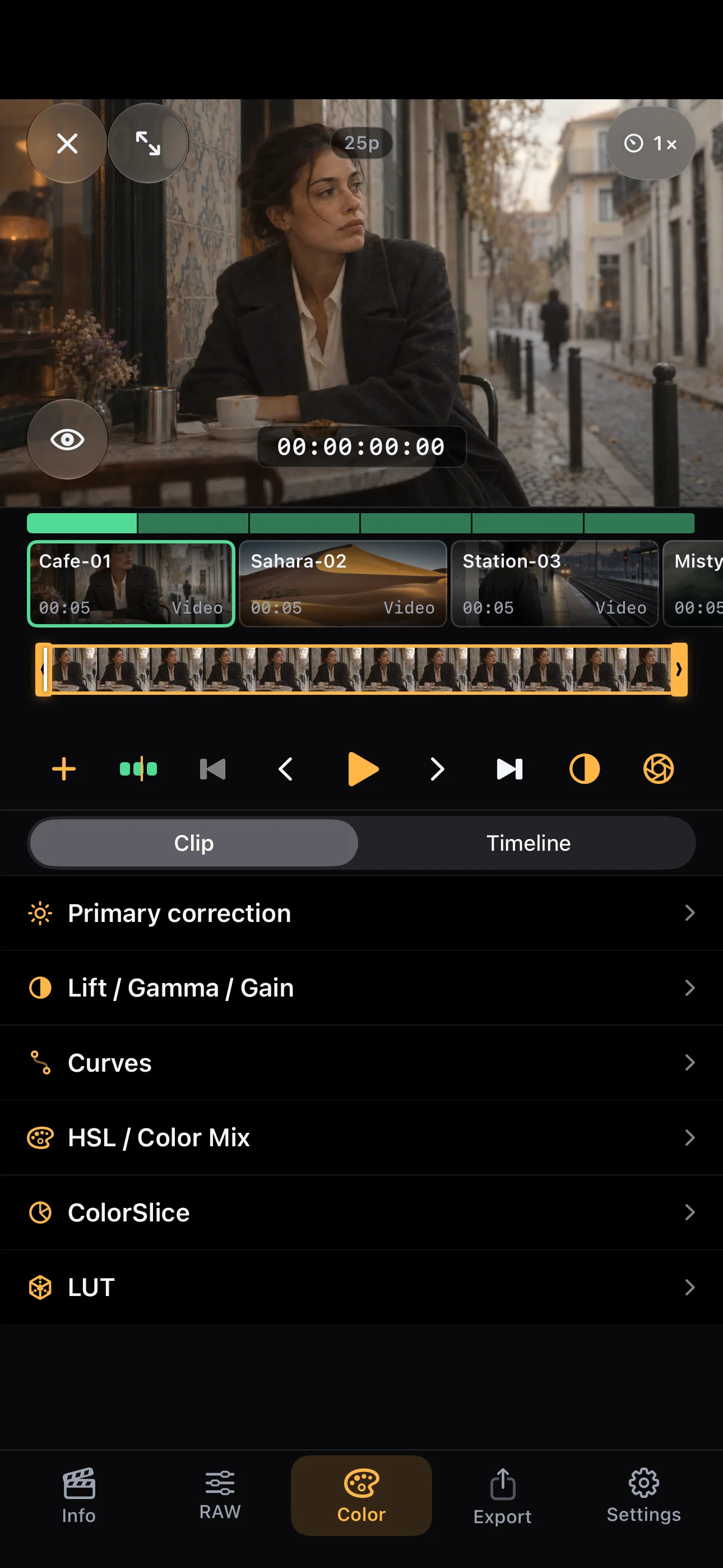
Make a quick correction or work on the details that define your look. Color tools for both RAW and supported everyday video formats.
Physical iPhone capture · conventional video
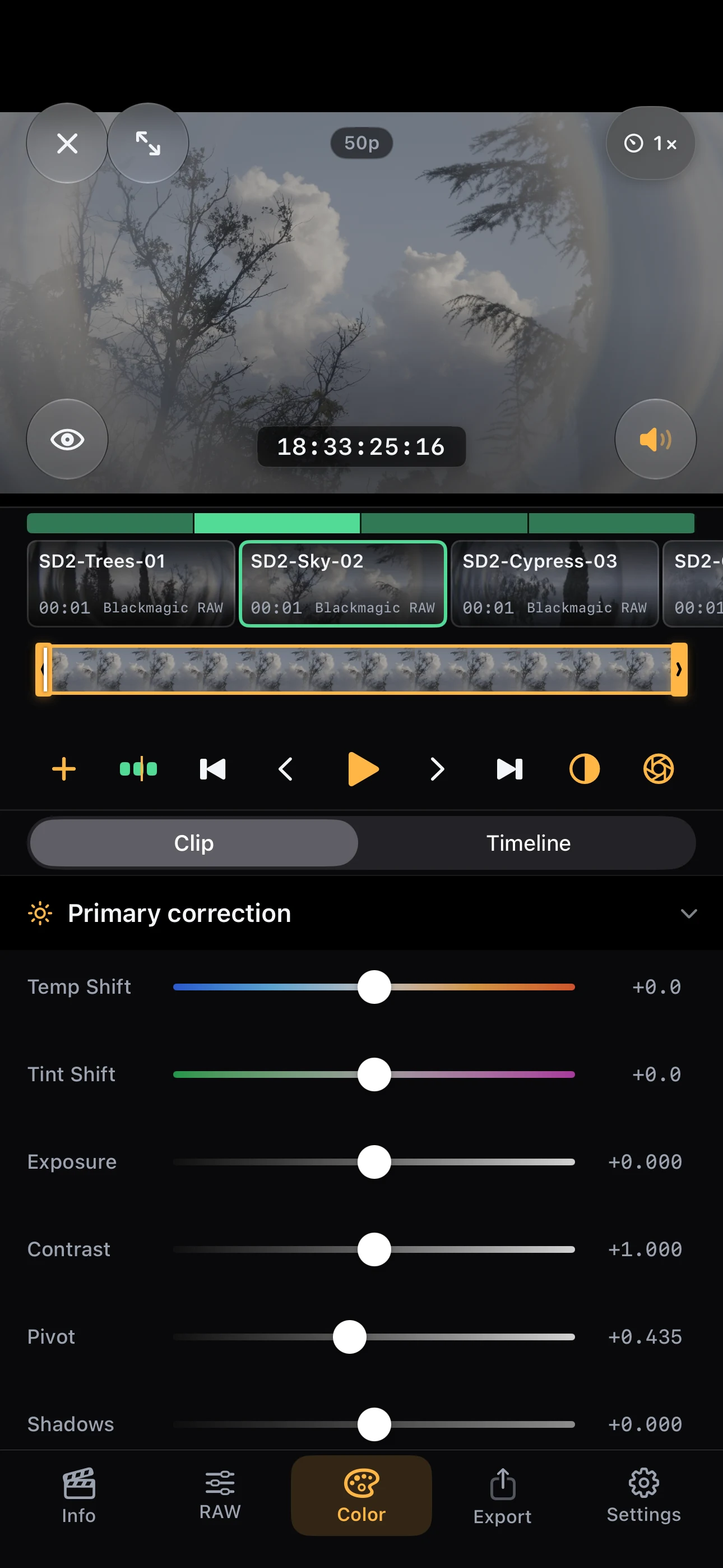
Physical iPhone capture · Blackmagic RAW
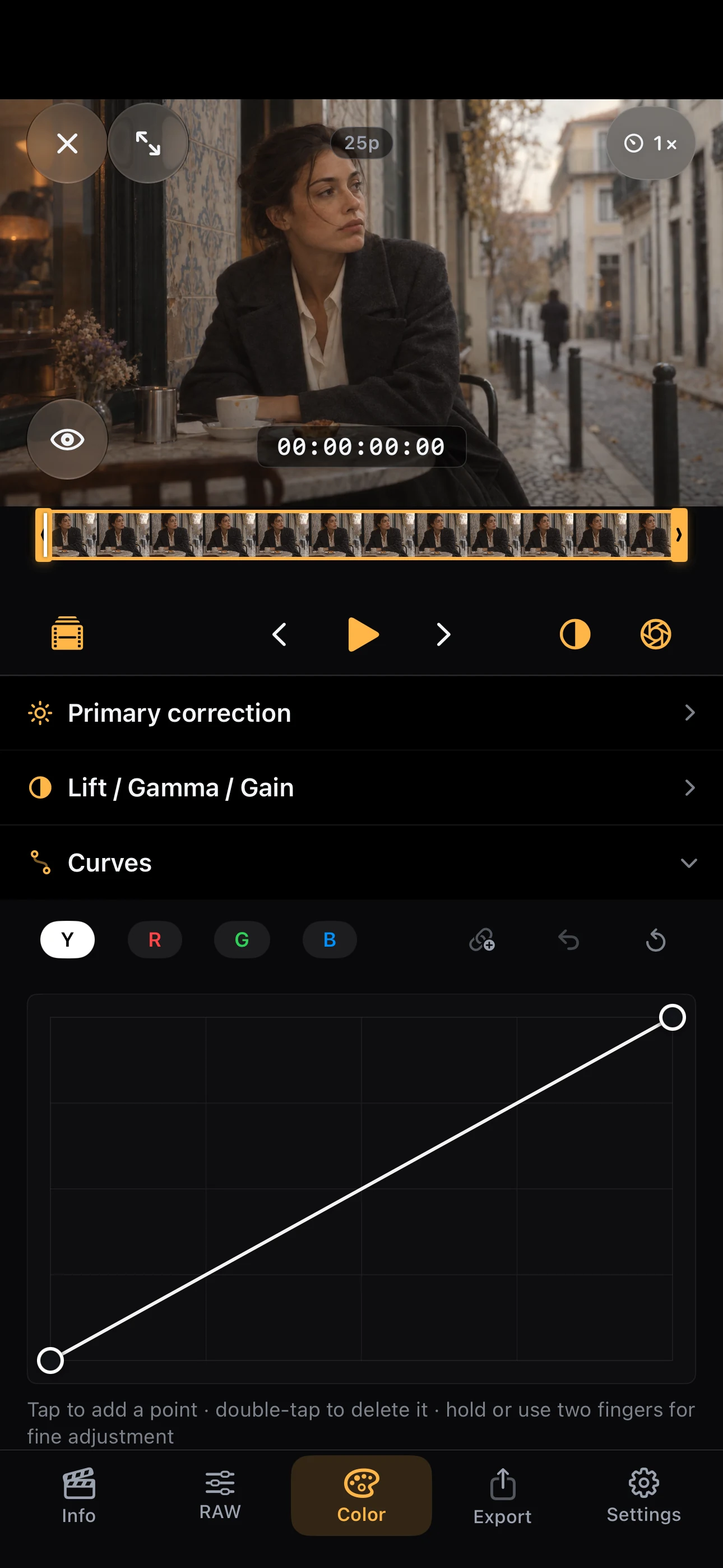
iPhone simulator capture · conventional video
Exposure, contrast, temperature and tint. Get the foundation right before building your look.
Lift, Gamma, Gain and Offset. Curves, HSL mixing and ColorSlice give you control over contrast and color.
Adjust the selected clip or apply a shared grade to the timeline. Copy and paste grades from a clip’s context menu.
Import LUTs and export supported color adjustments as a .cube file to use in other software. The LUT carries color, not your edits or RAW decoding settings.
Color tools for supported video formats. Dedicated decoding controls for RAW footage.
02 / KEEP THE GOOD PARTS
Select a clip in the timeline.
Trim it in a wider bar.
A small clip on the timeline does not have to mean a tiny trimming target. Adjust the selected clip in the dedicated trim bar and see its duration update in the timeline.
Open files, folders or an external SSD, or select videos from Photos. Add them to the same timeline.
Preview each clip, set its in and out points, and build a simple sequence.
Grade each clip or add a shared timeline correction. Choose how much they have in common.
03 / READY FOR THE NEXT STEP
Prepare individual shots for further editing or export a sequence with color applied. Choose the result you need, then the format. Export requires Pro.
Select the clips you want to deliver. Each exported file uses your trim and renders your color adjustments. Track progress for the batch and each clip, with the option to cancel.
Join your clips in timeline order, with their trims and color applied. Share a rough cut or a simple finished sequence as one video.
Export the selected range of a supported BRAW clip without re-encoding it or baking in your color adjustments. Keep the RAW footage for further decoding and grading. This original-file trim export is not offered for ProRes RAW.
* Available options depend on the source footage, device and export mode. Rendered video exports use SDR Rec.709; HDR sources need an SDR output transform first. Photos is available for compatible video exports. Original BRAW trims go to Files.
Export FCPXML or EDL to move your cuts to a compatible editor. You still need the original media and may need to relink it. Do not expect an identical grade or every setting to transfer; support depends on the destination editor.
FCPXML · EDL · .cubeEXPLORING IPHONE DUO
A larger view. Controls with space to work.
Four concepts for a studio that adapts to the way you hold it.
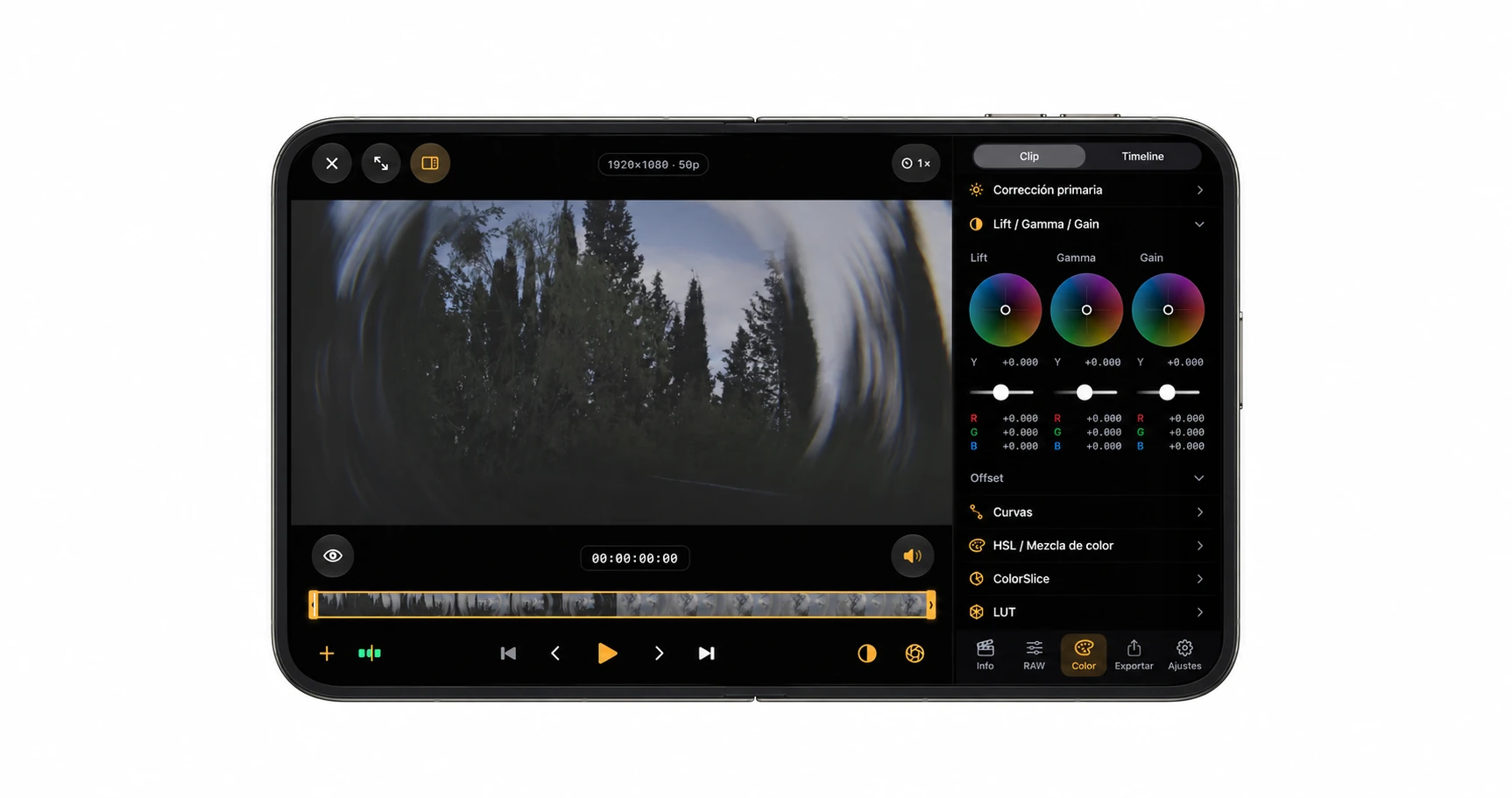
The viewer and tools share a wider surface. A layout concept for seeing the shot and adjusting its color in the same view.
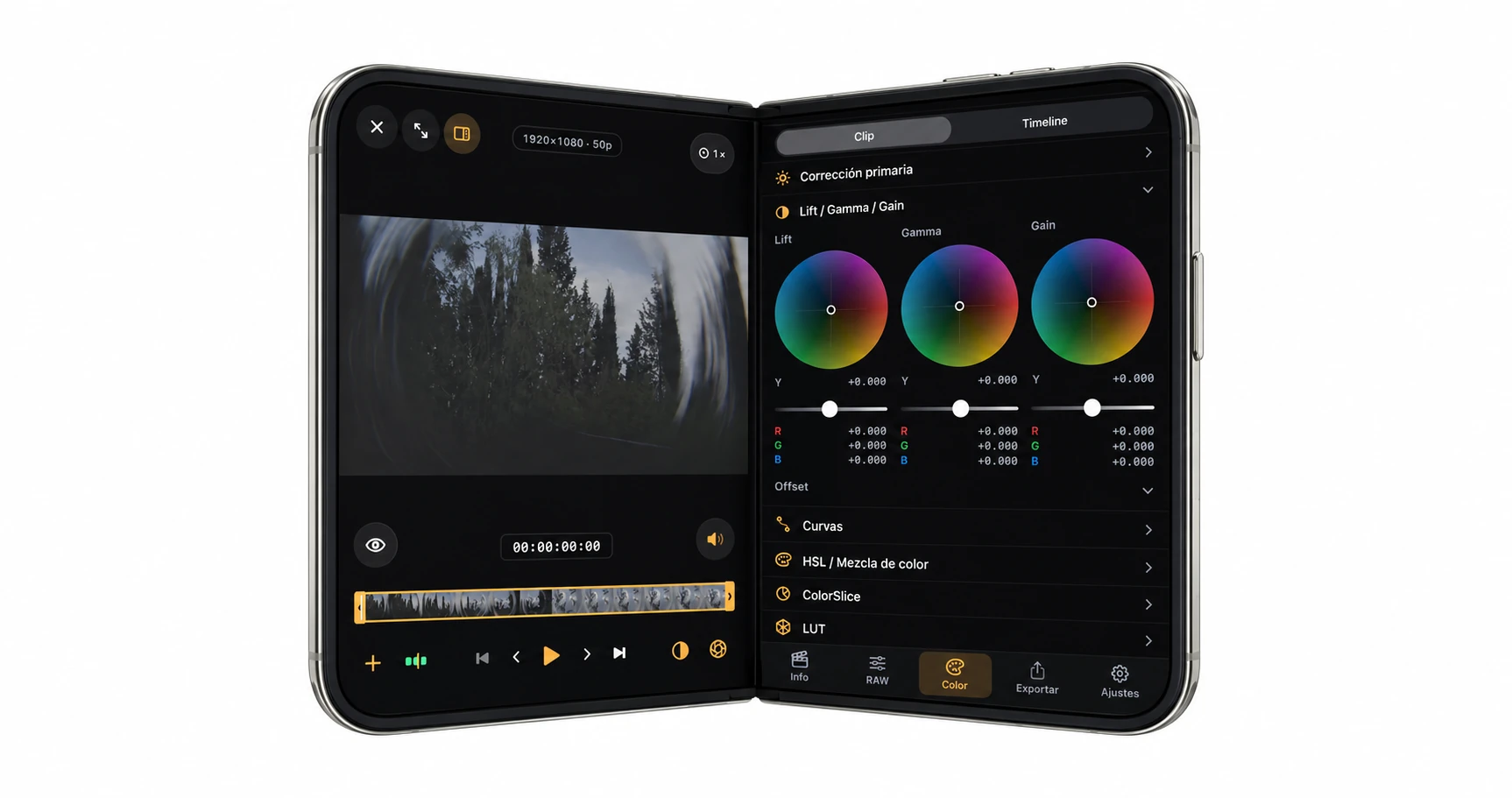
The book concept places the viewer and tools on either side of the fold, keeping the image and its controls close together.
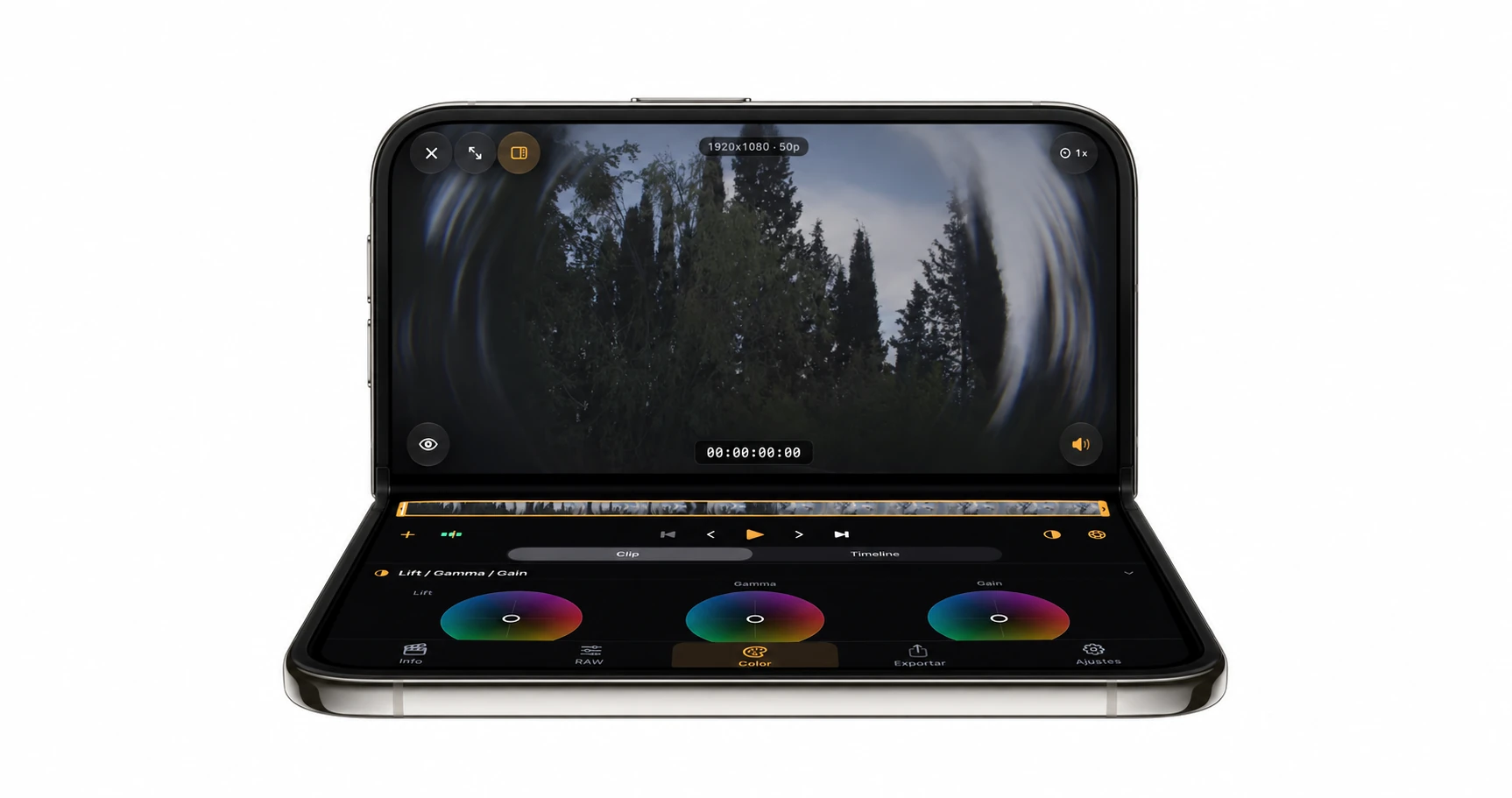
The laptop concept keeps the viewer on the upper half, with color wheels, trimming and playback controls on the lower surface.
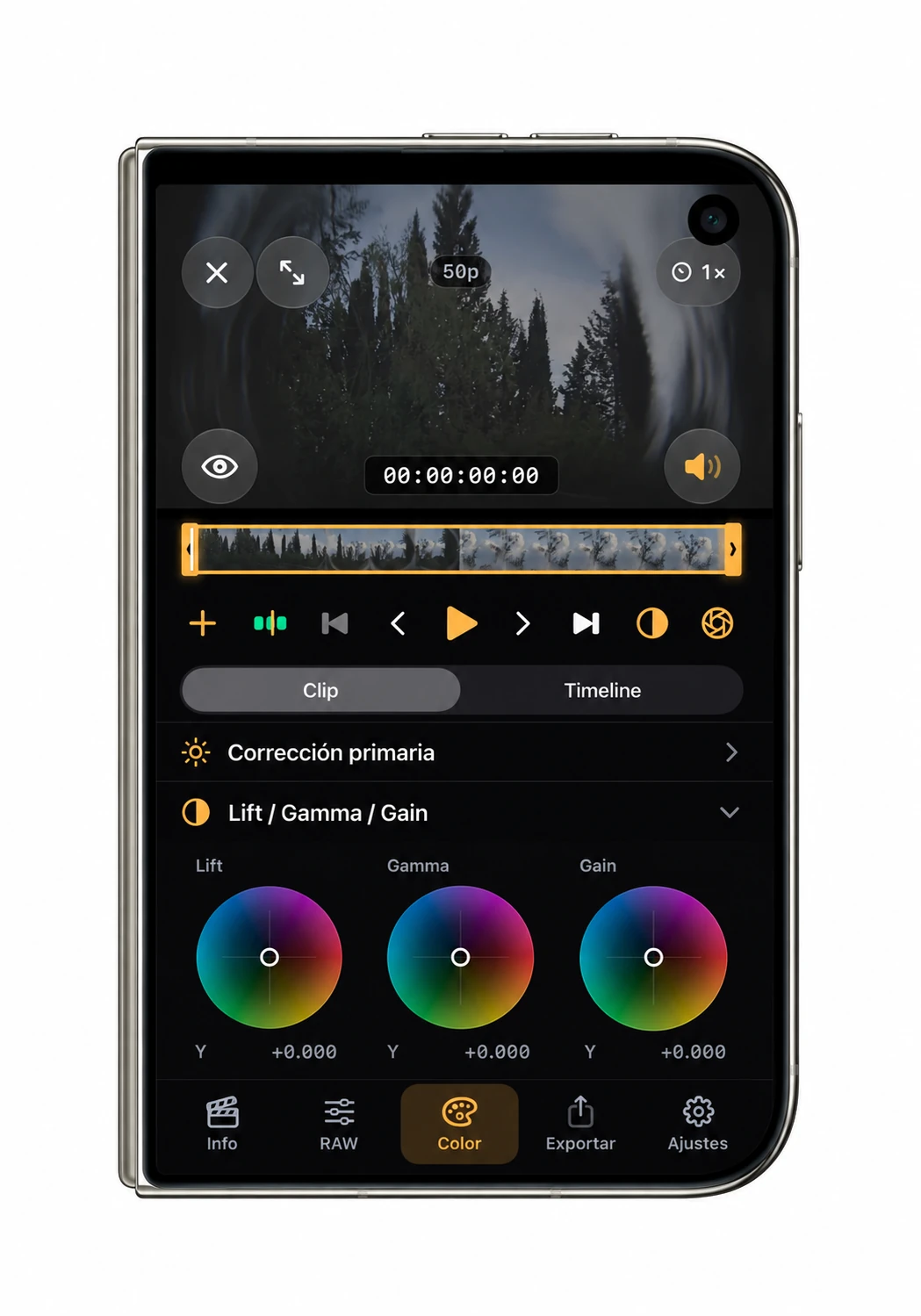
A compact layout concept for reviewing footage and making adjustments on the outer screen, with the viewer above the controls.
Concept renders generated from app screenshots, not photographs of physical hardware or confirmation of device compatibility. Layouts have been explored at simulated screen sizes. Automatic response to folding postures remains unvalidated.
TAKE A CLOSER LOOK
See the actual Color, timeline, trim and export screens. The Curves and export views were captured in the iPhone simulator; the others are physical-device captures.
Every gallery image is a capture of the real app interface. The station and café scenes are fictional conventional-video samples; the tree footage is genuine BRAW, and the Sahara scene is licensed stock video. The Curves and export screens come from an iPhone simulator. ProRes RAW compatibility is a product feature, not the source shown here. Duo concepts appear in their own clearly marked section above.
BEFORE YOU START
No. Color and editing tools also work with supported everyday video formats. Blackmagic RAW and Apple ProRes RAW add dedicated decoding controls where supported. ProRes is a codec family, ProRes RAW is a RAW format, and Apple Log is a log encoding. Support for one does not imply identical controls for the others.
BRAW, Apple ProRes RAW, ProRes, H.264 and HEVC files supported by your device. Open footage from Files or an external SSD, or select videos from Photos. Compatibility depends on the codec, container, resolution and device.
Footage opened from Files or an SSD is read from its original location where the provider allows it. Photos and some file providers may require a temporary copy. Keep external storage connected while working with its files.
Original-file trim export is available for supported Blackmagic RAW clips. It preserves the BRAW format and does not bake in your grade. Apple ProRes RAW playback and decoding support does not include this BRAW-only export feature.
A .cube LUT describes a static color transform within an input domain. It carries adjustments that can be represented by that transform, not edits, RAW decoding metadata or operations that vary across the image or over time.
Rendered exports currently use SDR Rec.709. HDR sources need an SDR output transform before delivery. Available codecs and destinations depend on the source, device and export mode; ProRes RAW is not a rendered export option.
Export requires Pro. Available plans and terms appear in the app. Check the App Store listing for current device requirements, languages and purchase options in your region. BlackRAW Studio 3.0 is available on the App Store.
BLACKRAW STUDIO 3.0
Your pocket color and video studio.
A new chapter in color, wherever you create.